
Node Management
Scenario Description
Provide one-click access to dedicated machine resources for teams and team projects, enabling independent management and control of machine resources and compilation environments.
Support multiple forms of dedicated machine resource access such as Cloud Application, Binary Package, and Docker Image, offering simplicity and efficiency.
- No need to rely on CI resources, reducing the invocation chain for starting code analysis executions;
- Manage the quantity of dedicated machine resources based on business scale, enabling distributed execution of code analysis, increasing analysis concurrency, reducing execution queuing, and accelerating analysis speed;
- Can connect to dedicated Mac machine resources to conduct code analysis for Objective-C projects;
- Development machines of various businesses can also be added to the dedicated machine resource list, effectively utilizing development resources and reducing machine costs;
- Business parties can independently manage and control the compilation environment of dedicated machines, specifying which dedicated machine executes analysis tasks to avoid compilation failures when analysis projects requiring compilation are executed.
Dimension Explanation:
Currently, analysis nodes are divided into two dimensions: team nodes and project nodes.
Team Node: All code analysis tasks within the team can use this node. Configuration can be accessed via [Team / Node Management].
Project Node: Only code analysis tasks within the current project can use this node. Configuration can be accessed via [Project / Node Management].
Access Steps
- Create a Node Pool: Nodes can be configured to use applicable node pools. When configuring an analysis scheme, a node pool must be specified, meaning code analysis tasks will be assigned to execute under the nodes in the corresponding node pool;
- Create a Node: Enter the node name and select the node pool to associate with, completing the creation;
- Start a Node: Click
Start Commandand choose to start the node using methods such asCloud Application,Binary Package, orDocker Image.
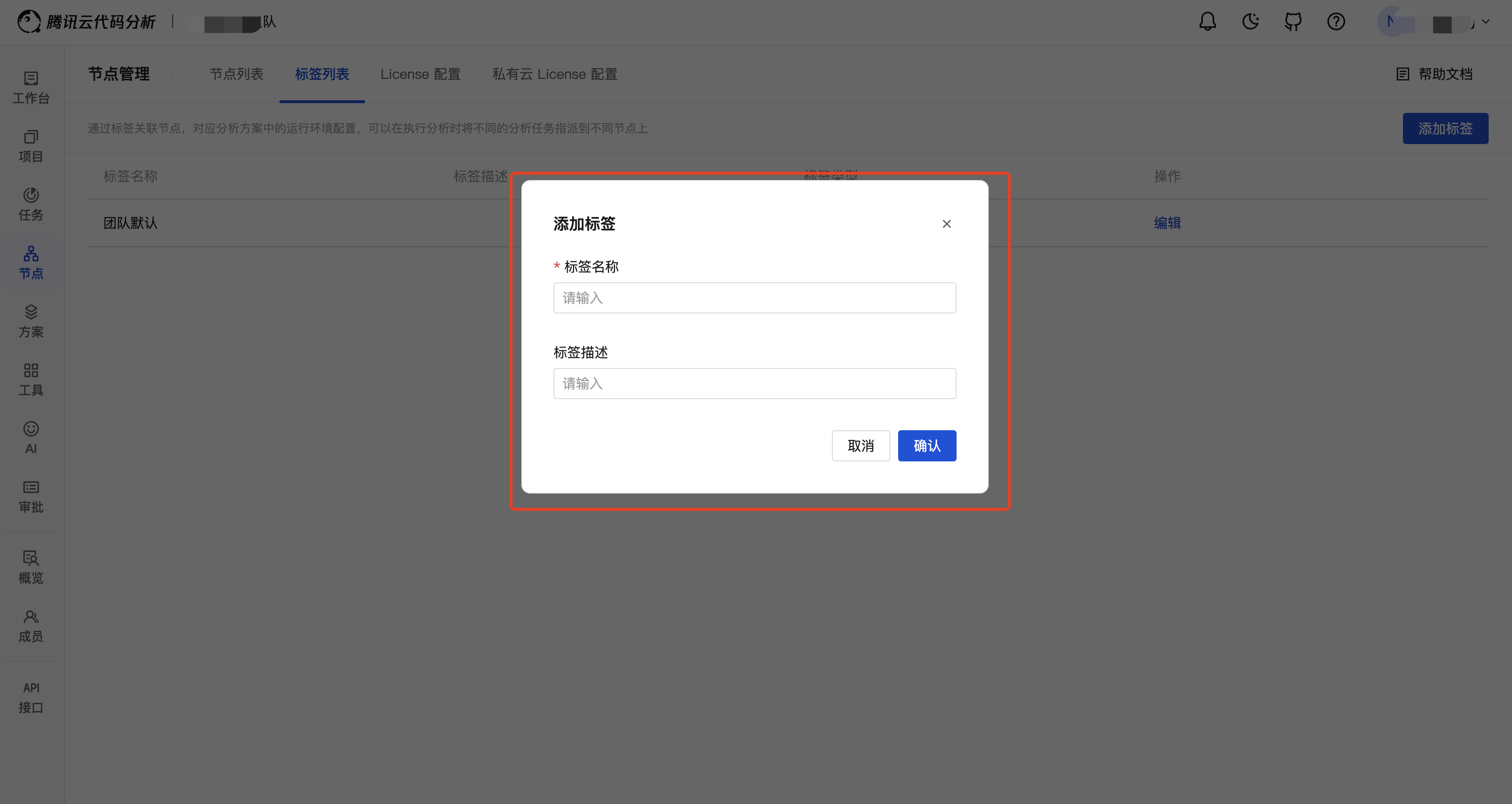
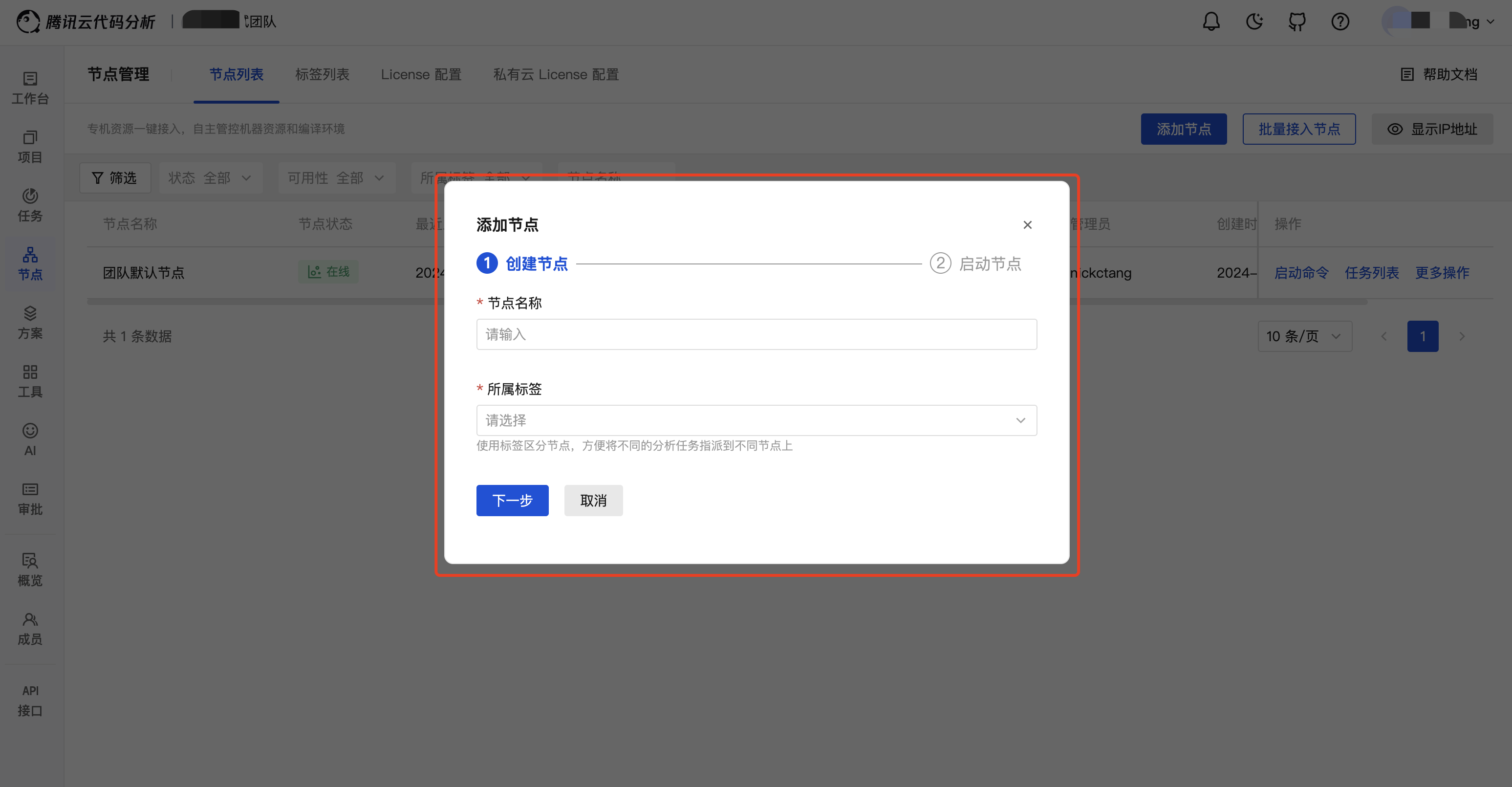

Access Methods
Support multiple forms of dedicated machine resource access such as Cloud Application, Binary Package, and Docker Image, offering simplicity and efficiency.
Cloud Application Access
Cloud Application integrates Tencent Cloud's official website and cloud resources, enabling flexible on-demand deployment and providing an exclusive, private, and secure experience. It supports one-click purchase of cloud servers and installation/startup of clients, requiring no additional deployment and no machine login, significantly reducing access costs and facilitating one-click access to team dedicated machine resources for independent management and control of machine resources and compilation environments.
Install the Cloud Application
Navigate to the Tencent Cloud Application installation interface and click to access.

Tips
Tencent Cloud Code Analysis - The client cloud application is provided free of charge, but the machine resources required for installation need to be paid for.
Select the Purchased Machine Configuration
Target Network: The application will be installed in the selected subnet (e.g., for analyzing GitHub code repositories, it is recommended to select the Hong Kong region for the target network).
Security Group: Used to set network access control for the cloud server; the region must match the target network.
Billing Type: The billing type for the cloud server, with options including monthly/yearly subscription or pay-as-you-go (the minimum pay-as-you-go configuration costs less than 1 yuan per hour).
Purchase Duration: The number of months purchased (only required for monthly/yearly subscription).
Auto-Renewal: Whether to enable auto-renewal (only applicable to monthly/yearly subscription).
Installation Node: Can only select cloud servers in the target network region; the official image TencentOS Server 2.4 is used by default.
Node System Disk Size: The initial system disk size of the cloud server, defaulting to 50G, with options to expand or purchase data disks later.
Node Public Network Outbound Bandwidth Limit: The maximum bandwidth the cloud server can use, defaulting to 5Mbps.
Tips
Notes:
If purchasing Tencent Cloud resources for the first time, you need to create the target network and security group first.
For analyzing
GitHub code repositories, it is recommended to select theHong Kong regionfor the target network to avoid potential network latency during code pulling.Installation nodes can select machines with different configurations based on needs, which can be modified later.
Machines in different regions cannot communicate with each other; the region cannot be changed after installation.
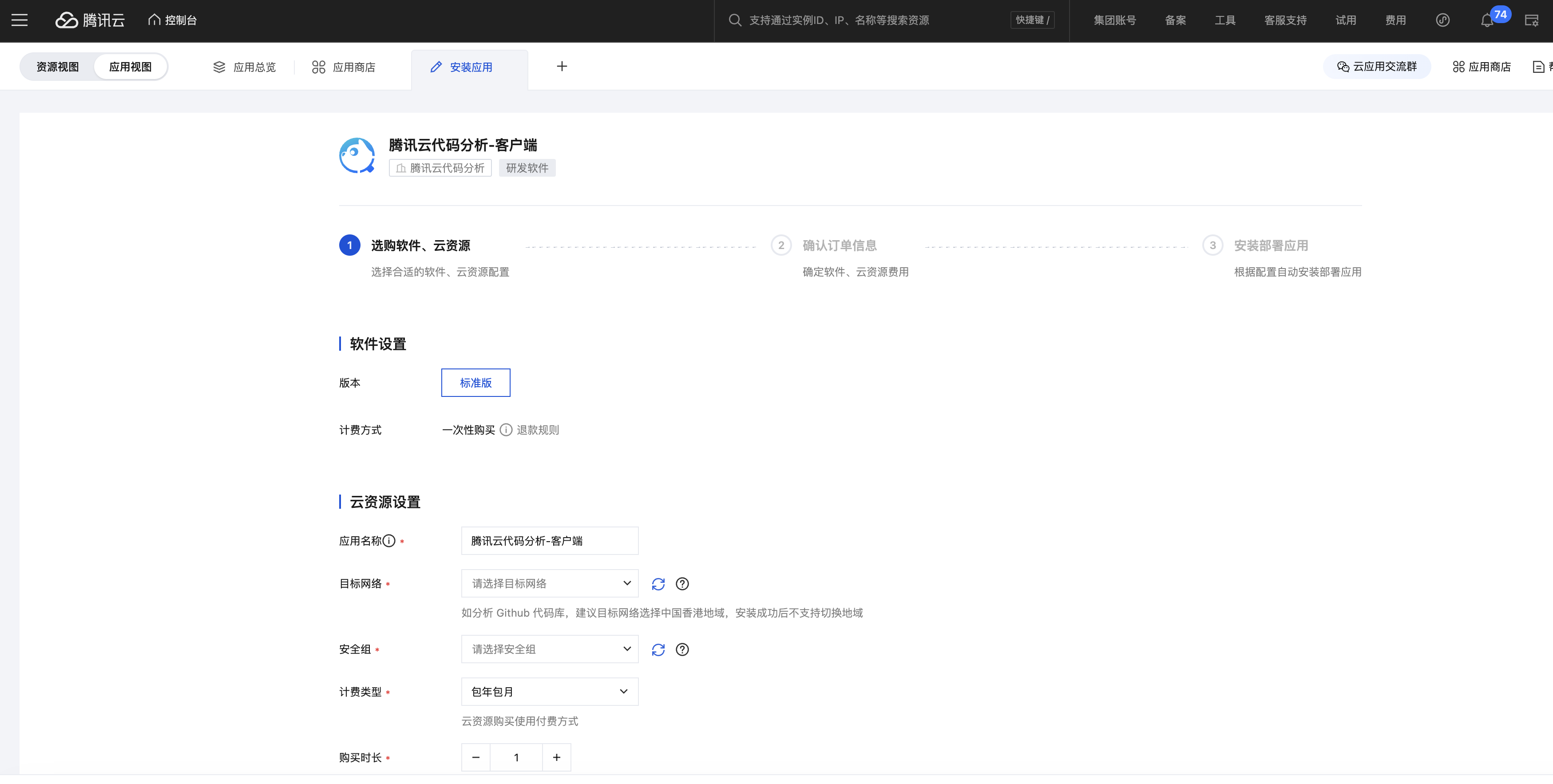
Fill in Client Node Information and Start Command
Obtain from the node's start command.

Launch the Application
After confirming the resources, install the application. Wait approximately 3 minutes for installation to complete, then launch the application. On the application page, you can click
Enter Code Analysisand check if theNode Statusis Online. If offline, wait 3-5 minutes and refresh the node page to check again.CMV Resource Information: Includes basic information about the purchased cloud server; detailed information can be viewed on the instance page.
Application Details: Includes information such as the installation directory of code analysis on the cloud server.
Q&A: Answers to common questions; if issues persist, scan the QR code in the lower right corner to join the [Code Analysis Open Source Community] for technical support.
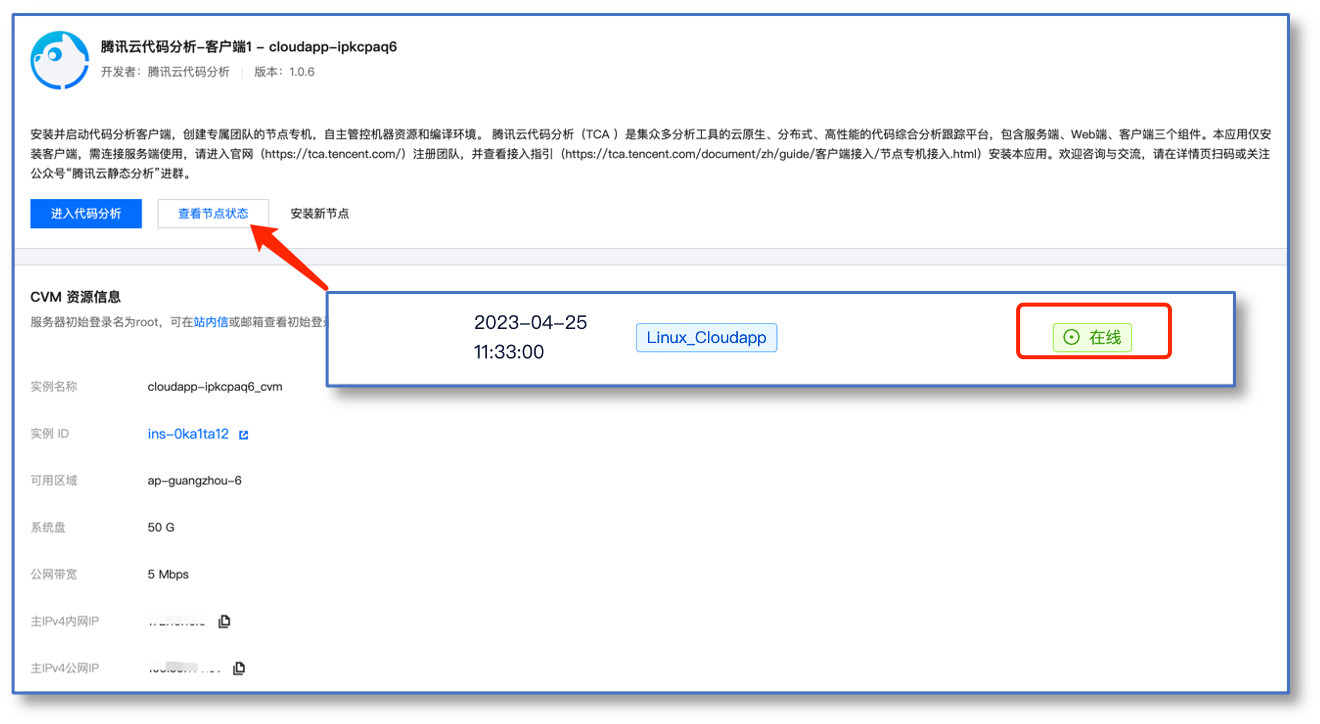
The cloud application installation is now complete, and the node has been successfully connected.
Binary Package Access
Follow the embedded instructions on the page to operate.
Tips
If you downloaded a Mac client zip package, the first run may trigger a popup reminder on Mac. To ensure smooth client execution, perform the following checks after downloading the client zip package:
Use the
xattrcommand to view the extended attributes of the downloaded zip package:xattr -l tca-client-*.zipIf the extended attributes include
com.apple.quarantine, the file is marked by macOS and will trigger a popup reminder when executed.Use the following command to remove the extended attribute:
xattr -d com.apple.quarantine tca-client-*.zipDecompress and launch the application.

Docker Access
Follow the embedded instructions on the page to operate.

Usage Instructions
The runtime environment is the node label. By specifying the runtime environment in the analysis configuration, code analysis tasks can be assigned to run on designated nodes.
Configure Runtime Environment in Analysis Scheme: Users can configure the runtime environment in the analysis scheme. When executing code analysis using this scheme, tasks will be assigned to run on the specified nodes.
Specify Runtime Environment in Code Repository-Level Analysis Configuration: Users can define matching rules in the code repository-level analysis configuration to specify that analysis projects run in a particular environment, with priority over the runtime environment configuration in the analysis scheme.
Specify Runtime Environment in Code Repository-Level Scheduled Task: When configuring a scheduled task, the runtime environment must be specified. It is recommended to allocate separate node resources for scheduled tasks or execute them during off-peak hours to avoid impacting daily business analysis.