
CNB TCA Badge
Supports displaying the TCA badge in Cloud Native Build (CNB) to showcase analysis results.
Tips
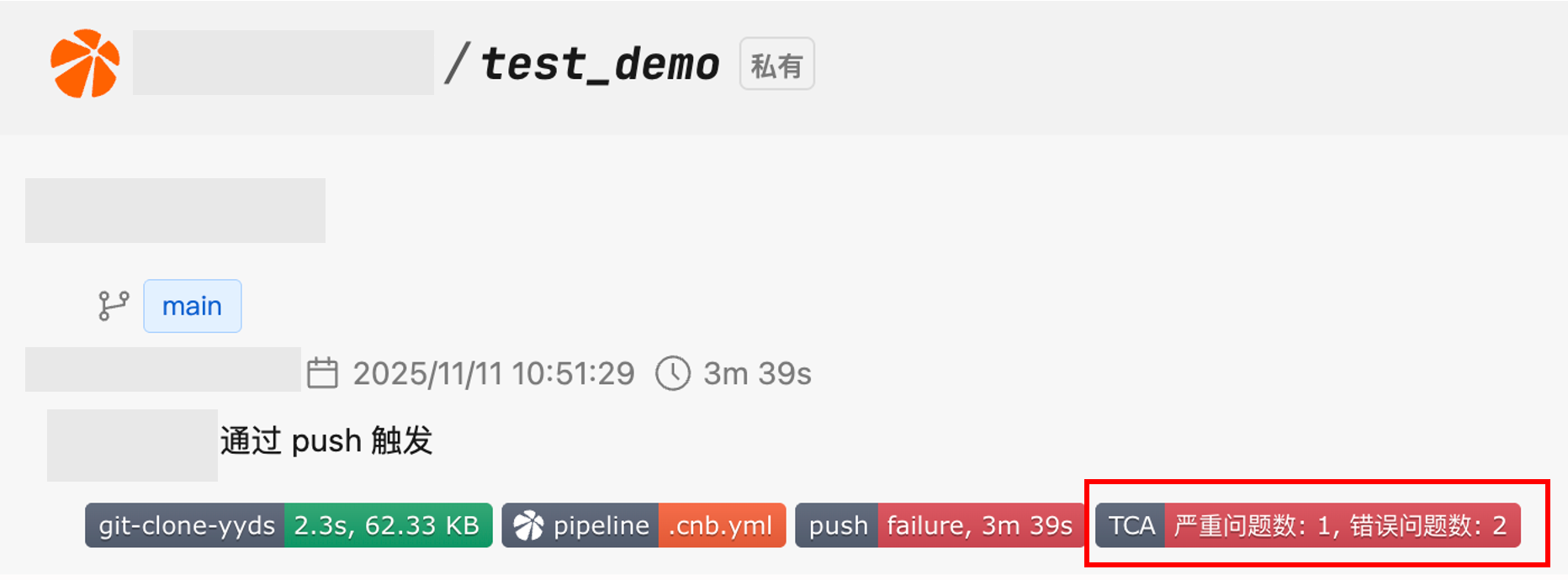
The badge visually reflects the code analysis results of this commit through different colors and is displayed on the commit of this submission in the repository.
Usage Guide
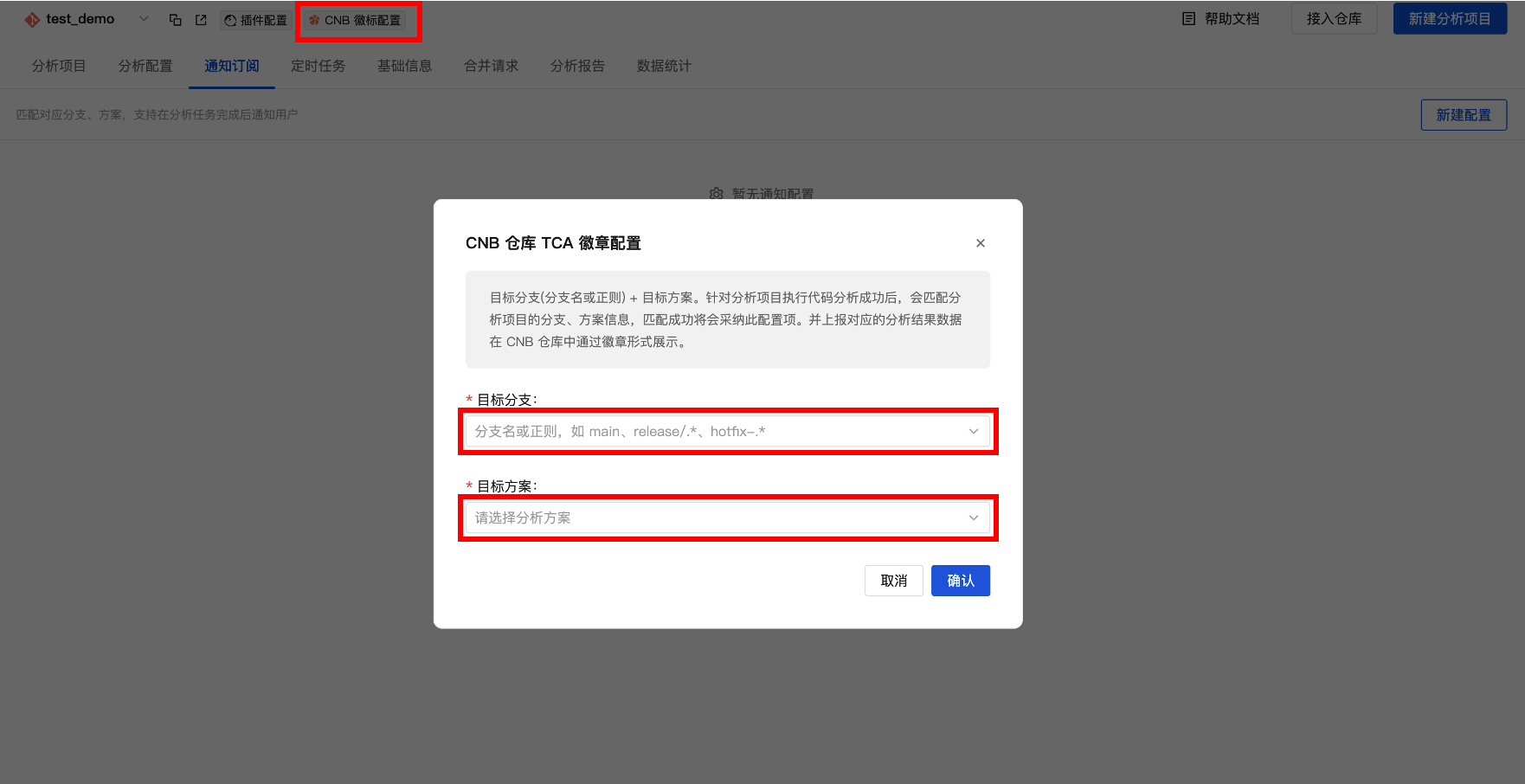
On the CNB repository page connected to the TCA platform, click CNB badge configuration, and set the target branch and target scheme.
Target branch (branch name or regex) + Target scheme. When the analysis project executes code analysis, it will match the branch and scheme information of the analysis project, and if the match is successful, this configuration item will be adopted.
Warning
Please ensure that the credentials configured for the code repository have the [repo-commit-status:rw] permission; otherwise, the badge cannot be displayed!
Badge Not Taking Effect
The badge configuration for the CNB code repository has been completed on the TCA platform, but the TCA badge is not displayed on the commit of the corresponding CNB repository. The following reasons may exist:
- The analysis project corresponding to the branch + analysis scheme has never executed analysis.
- The corresponding analysis project exists, but a certain commit has not executed analysis.
- For the CNB repository registered on the TCA platform, the configured credentials do not have the permission to report badge data, i.e., the credentials lack the [repo-commit-status:rw] permission.
Credential Permission Guide
- Go to the CNB Personal Access Token Page and add an access token.
- Ensure that the authorization scope includes read-write permissions for [repo-commit-status]!
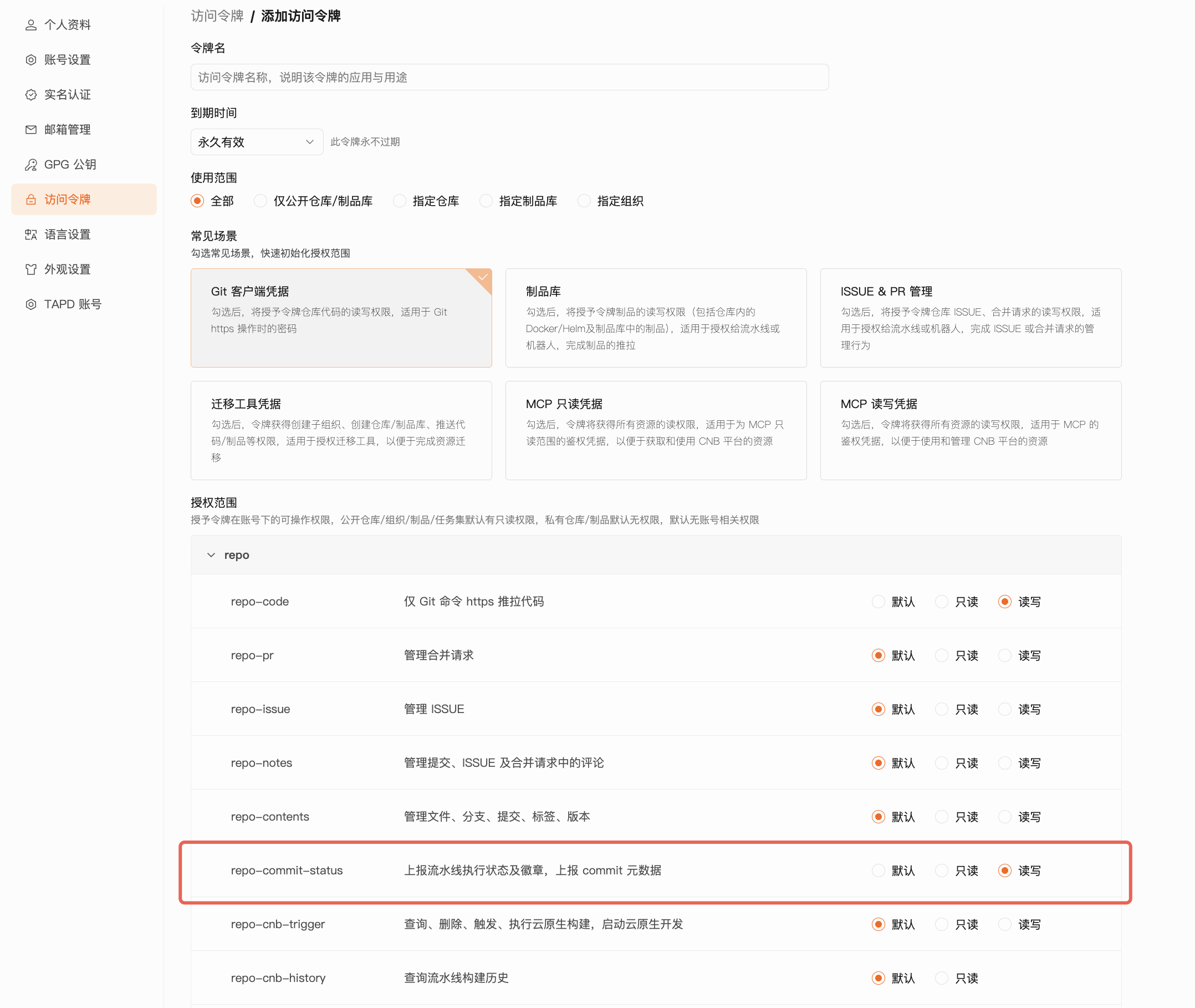
- After completing the creation of the personal token, return to the TCA platform, go to the Personal Center - Credential Management page, and update/create the CNB code repository credentials.
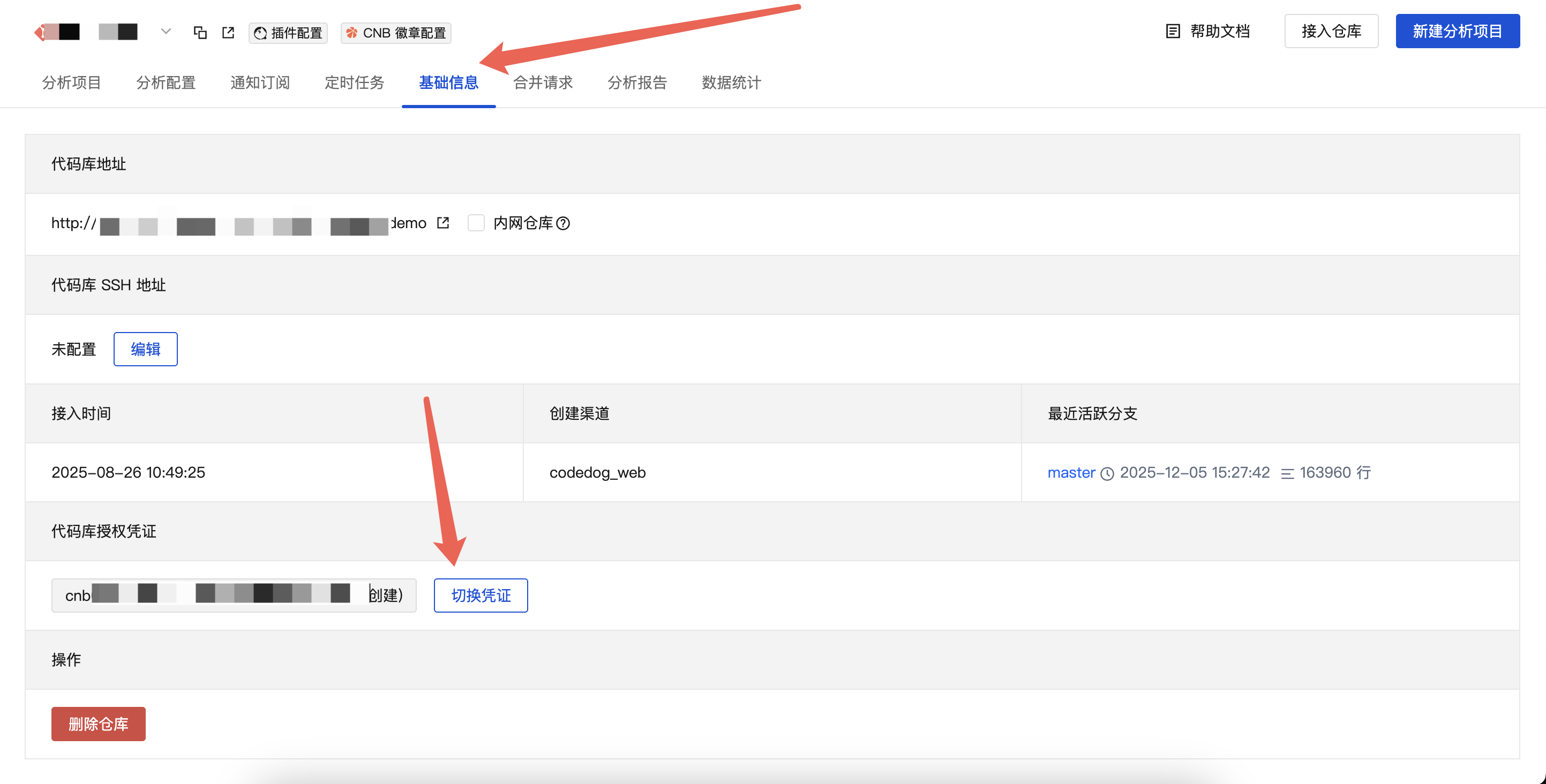
- Return to the corresponding CNB repository page on the TCA platform and switch the code repository credentials.
Badge Description
Tips
You can click the badge to jump to the corresponding issue page on the TCA platform.
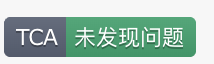
- No issues found: Indicates that the number of critical issues and error issues in this analysis is
0.
- Code analysis failed: Indicates that this analysis execution failed.

- Issues found: Indicates the number of corresponding critical and error issues in this analysis.
