Component Composition Analysis
Source code/artifact component composition analysis primarily examines multi-dimensional risks such as License/Copyright compliance risks, security vulnerabilities, open-source component poisoning risks, and sensitive information leakage.
Source Code Component Composition Analysis
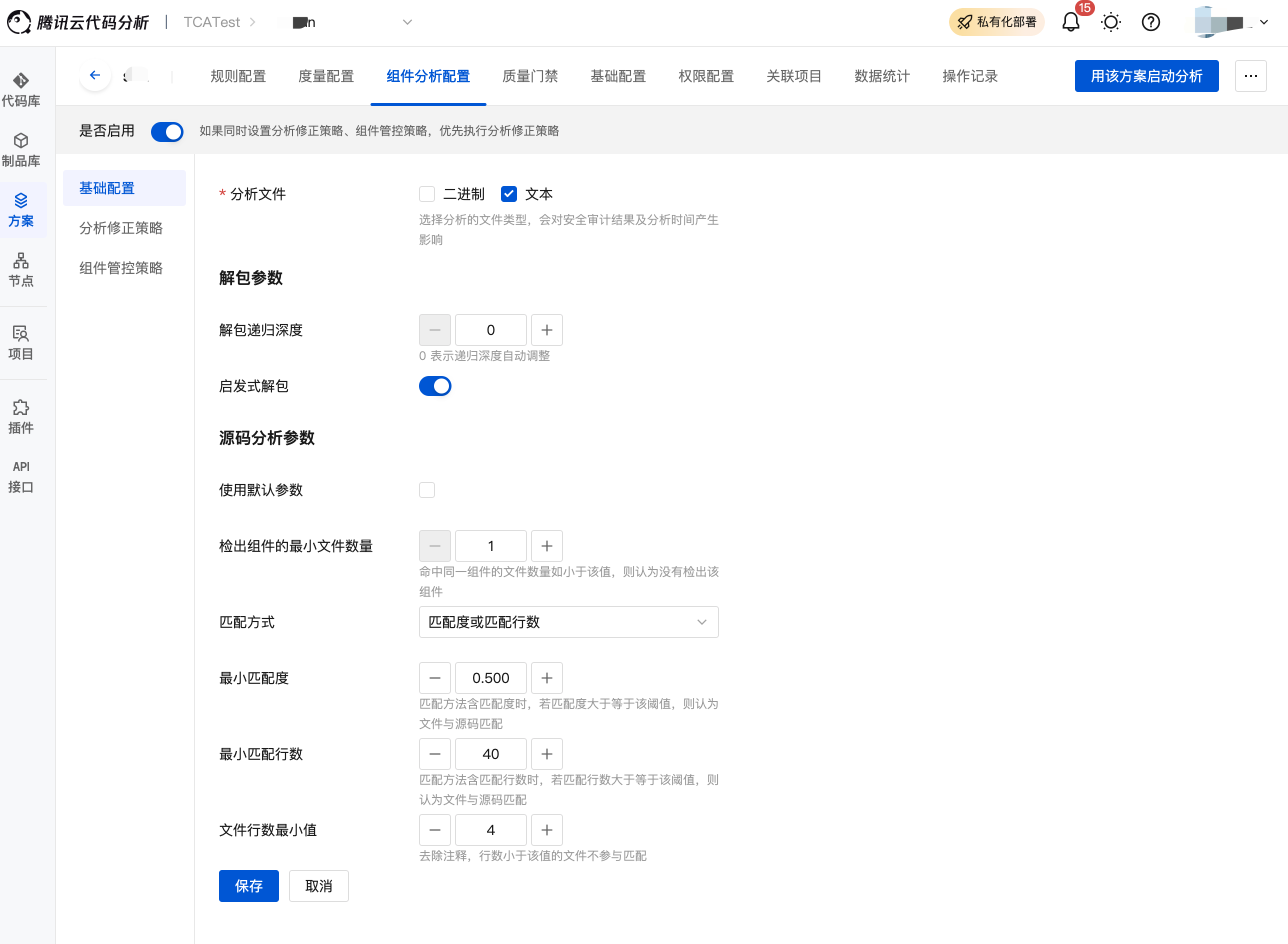
Create a project/team code repository scheme, navigate to component analysis configuration, toggle on the enable/disable switch to enable the source code component analysis capability, and configure analysis correction strategies and component management strategies as needed.
Analysis correction strategies: Support users in maintaining result correction rules for components, vulnerabilities, licenses, and security audits.
Component management strategies: Support users in maintaining allowlists and blocklists of explicitly trusted or prohibited components.
If both analysis correction strategies and component management strategies are applied, analysis correction strategies take precedence.
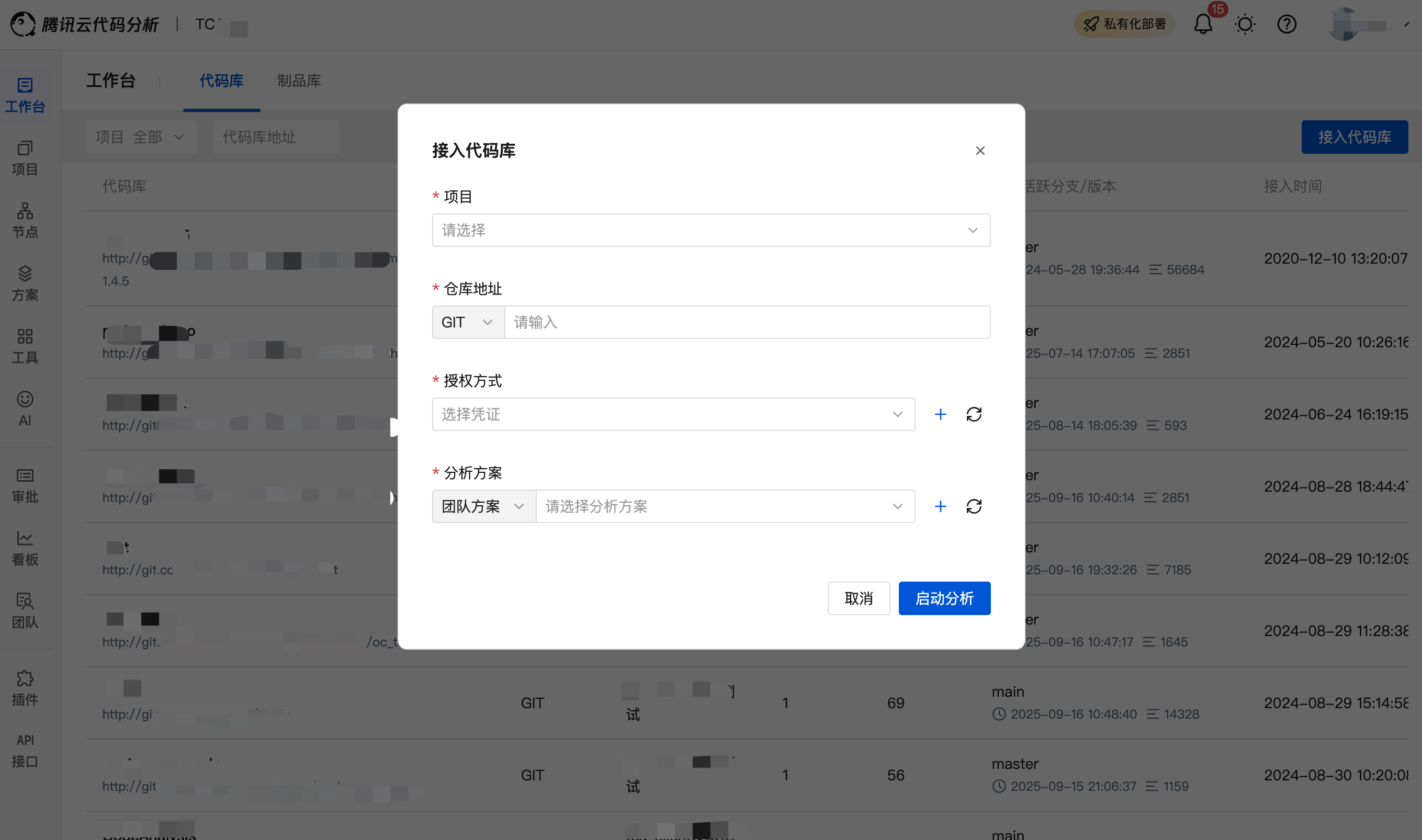
- Connect to the code repository, select an analysis scheme, click Start Analysis, and the source code component composition analysis will begin.
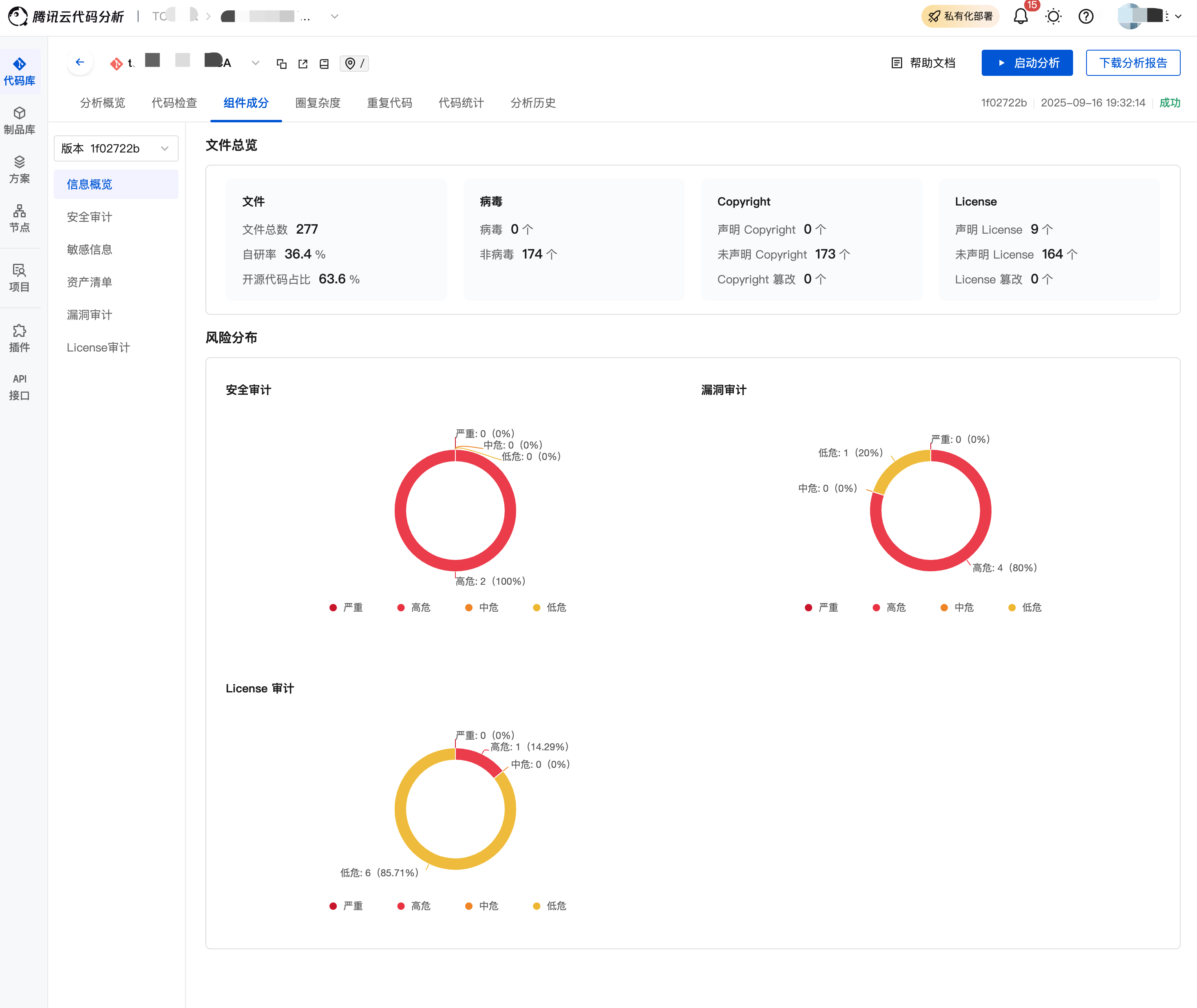
After analysis is complete, navigate to Analysis Project > Component Analysis to view the latest analysis results. Switching versions allows viewing analysis results of historical analysis tasks.
Sensitive Information: View sensitive private keys, sensitive URI passwords, sensitive IPs, sensitive email addresses, and other information, along with their exposure locations.
Asset Inventory: View information on included open-source components.
Vulnerability Audit: View details of detected vulnerabilities and their exposure locations to assist in verifying/fixing vulnerabilities.
License Audit: View third-party components with risky licenses to assist in compliance checks.
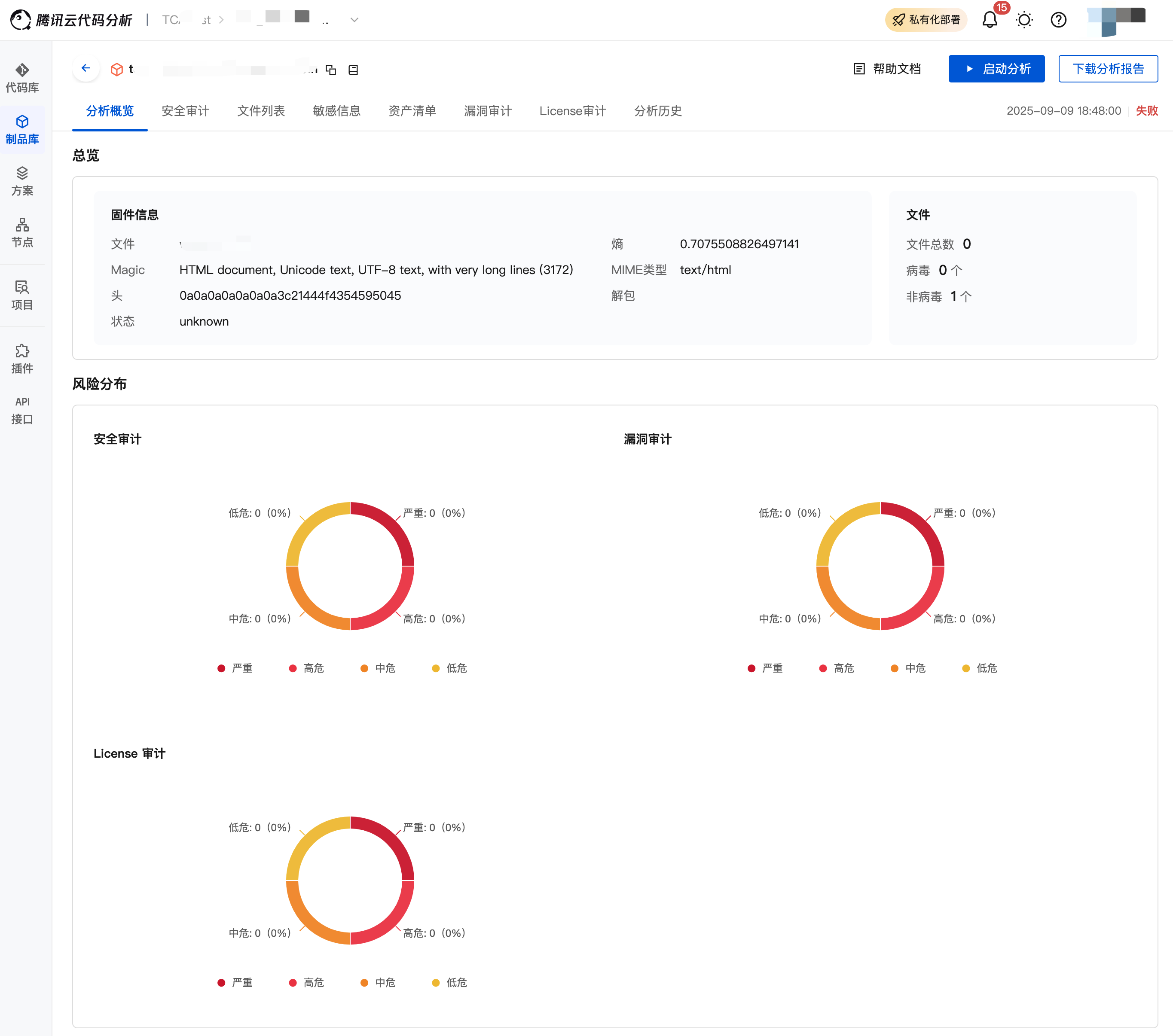
Artifact Component Composition Analysis
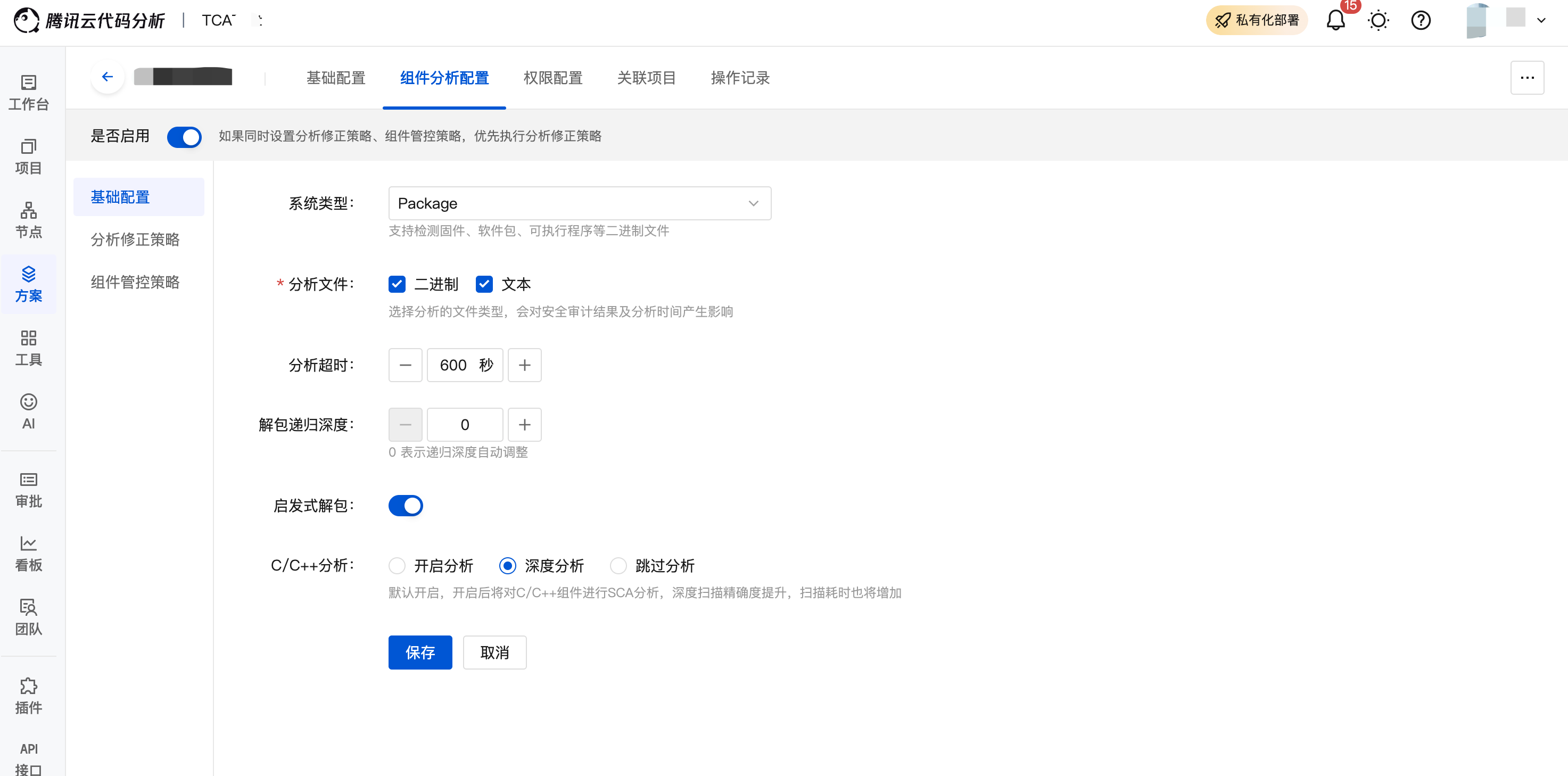
- Create a project/team artifact repository scheme, and the component analysis switch will be enabled by default.
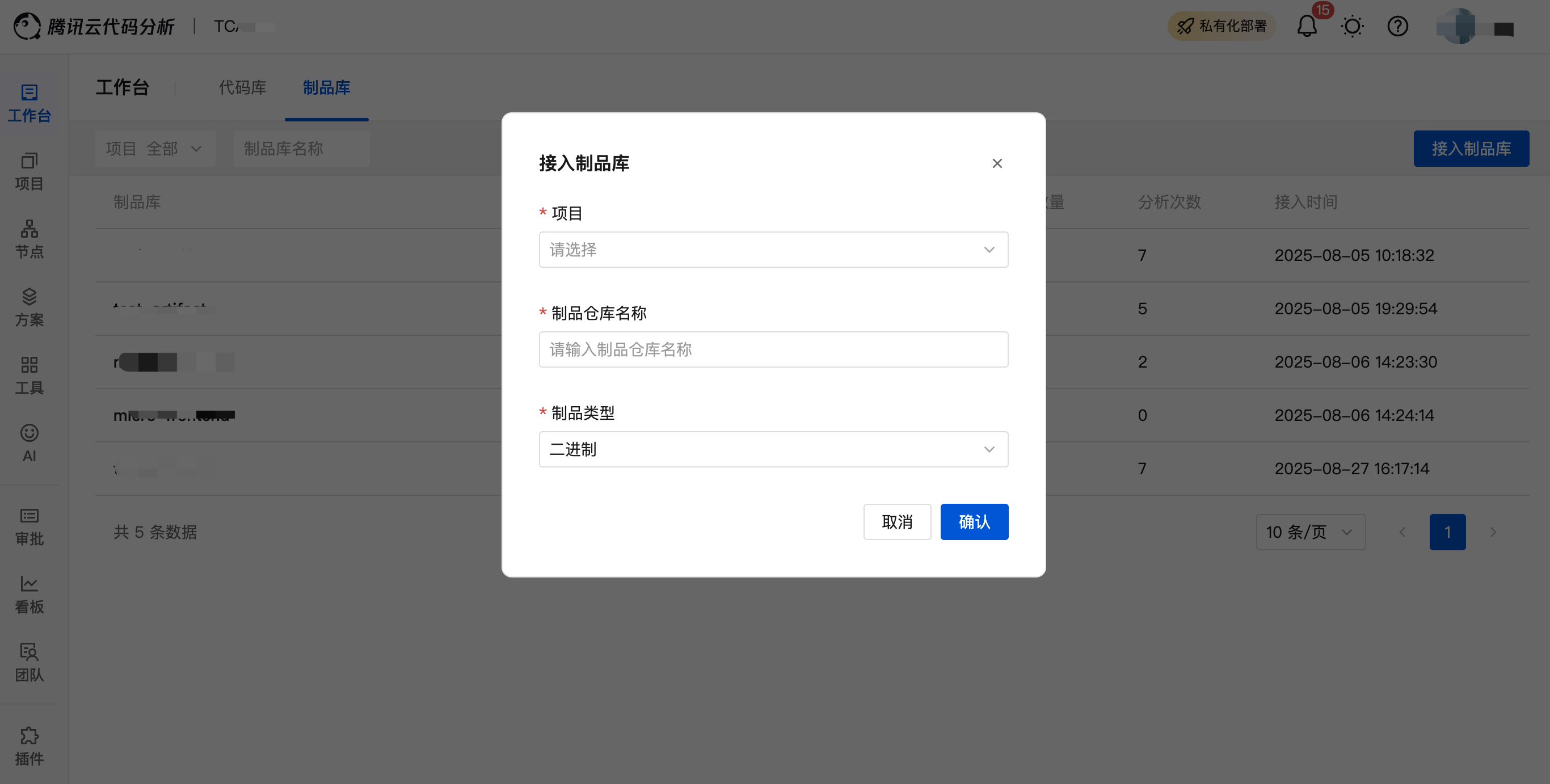
- Connect to the artifact repository, select a project, enter the artifact repository name, and click OK.
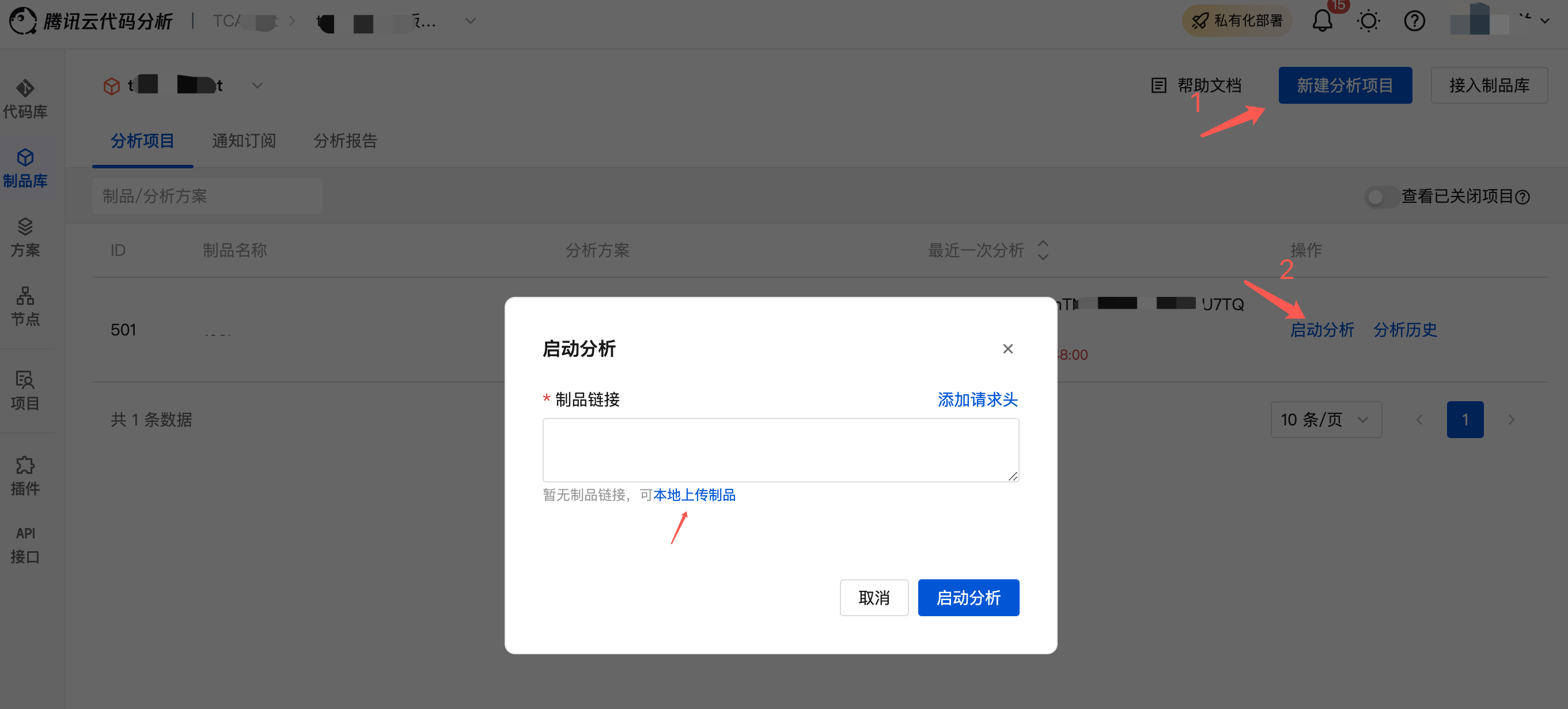
- Navigate to the analysis project list, create a new analysis project, select an analysis scheme, and click OK. Click the corresponding analysis project to start analysis, where you can input an artifact link or upload a local artifact for analysis.
After analysis is complete, navigate to Analysis Project > Component Analysis to view the analysis results.
- Historical task analysis results can be viewed via the analysis history list.